
SETTING WIFI_1X.UM
1. Enter the settings
2. Select Wiresless Network
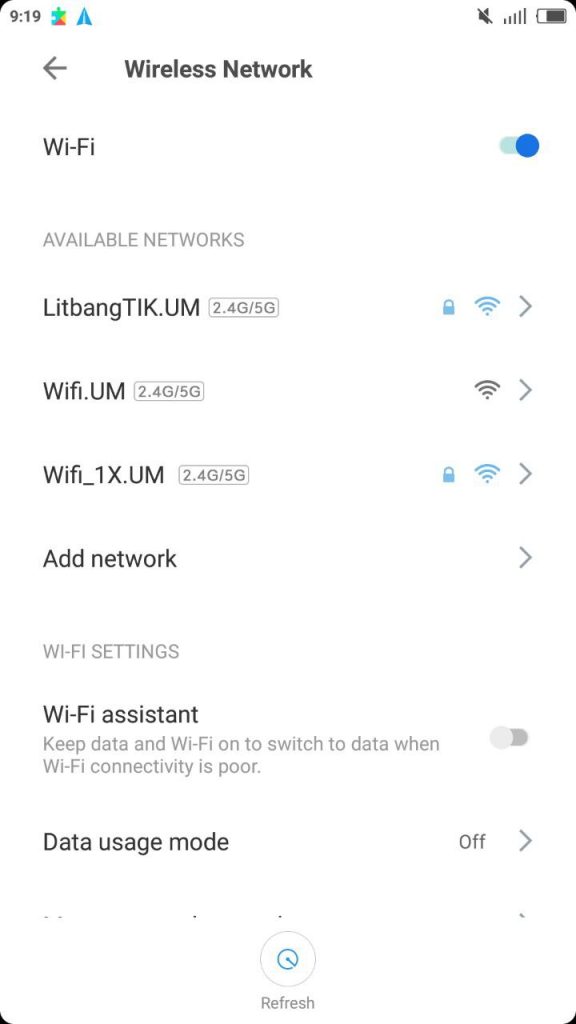
3. Several wifi options will appear. Select WIFI_1X.UM
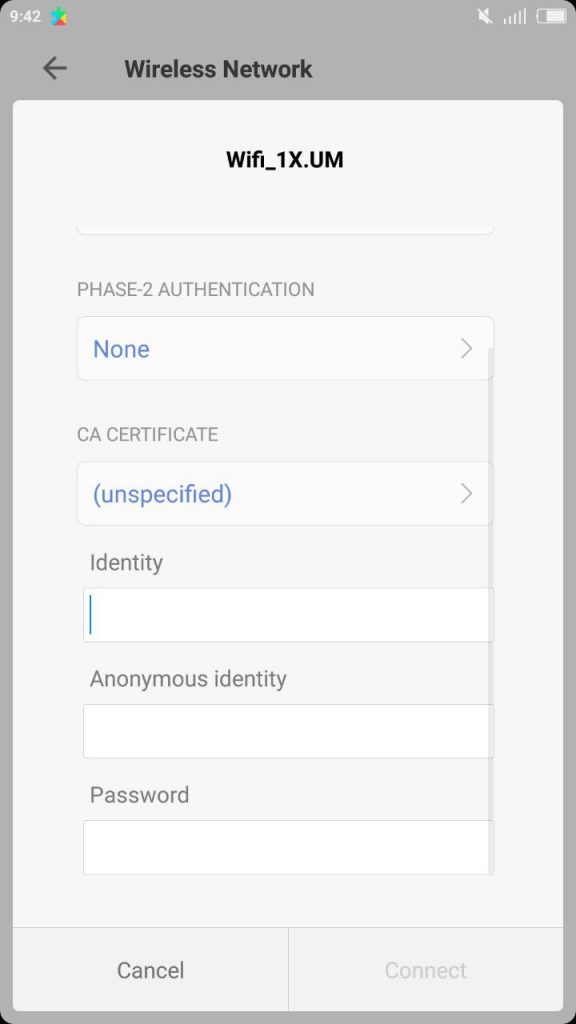
4. When selecting WIFI_1X.UM on your smartphone, security options will appear as shown in the picture. Here are the filling instructions:
- EAP Method: PEAP
- Phase-2 Authentication: None
- CA Certificate: (unspecified)
- Identity: "Fill in your NIP"
- Anonymous Identity: Blank
- Password: "Fill in a single account password (a single account is usually used to login when filling in Kinerja.um.ac.id (ppkpns) or siakad.um.ac.id)"
- Click Connect
5. After success, you can use the Internet.
WIFI.UM SETTING
1. Enter the settings
2. Select Wireless Network
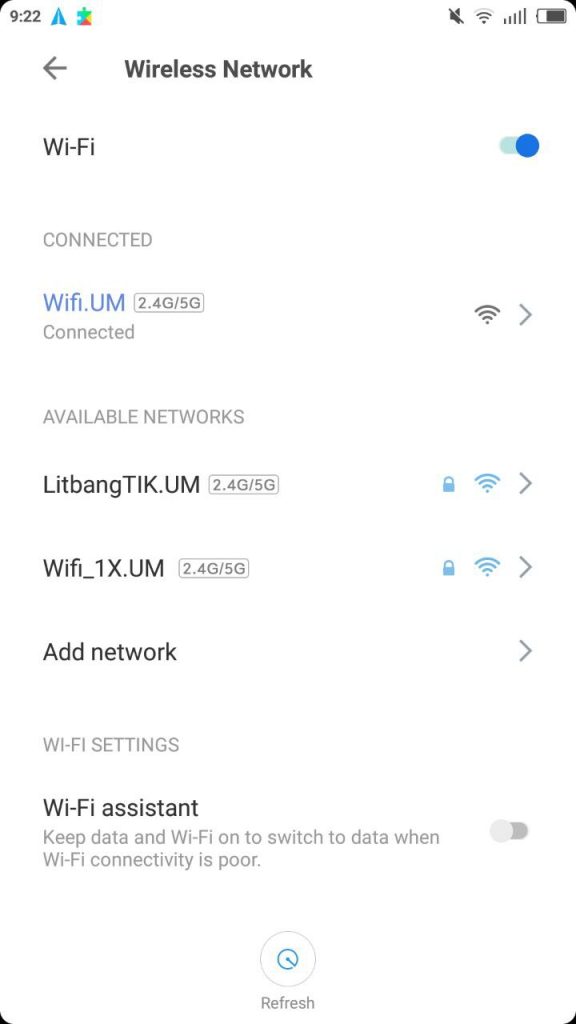
3. Several wifi options will appear. Select WIFI.UM
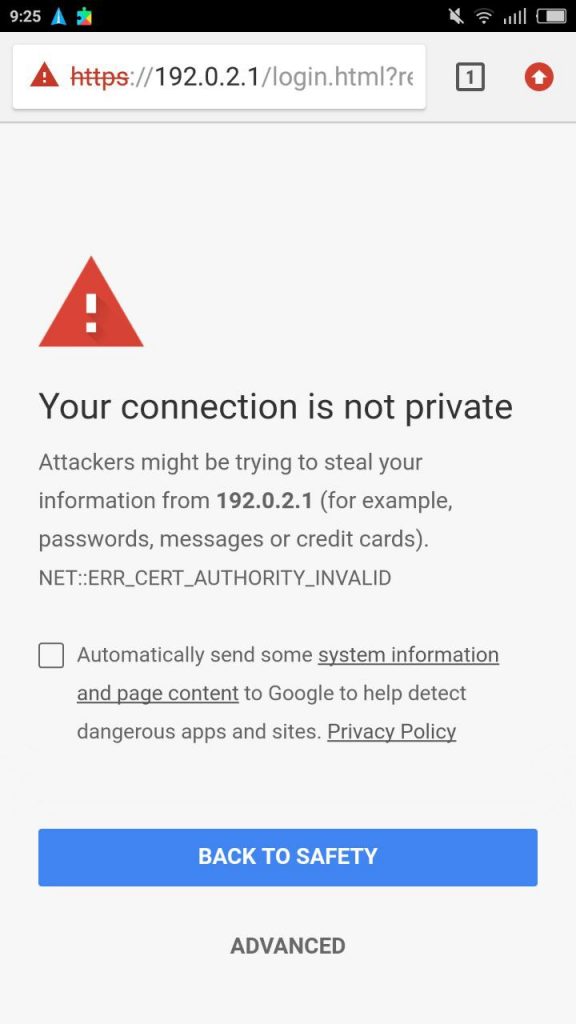
4. Open a browser and try browsing, for example, to google.com. Then you will be directed to the authentication page. choose Advanced. Then choose “Proceeed to 192.0.2.1 (unsafe).
5. Then the Login page will appear.
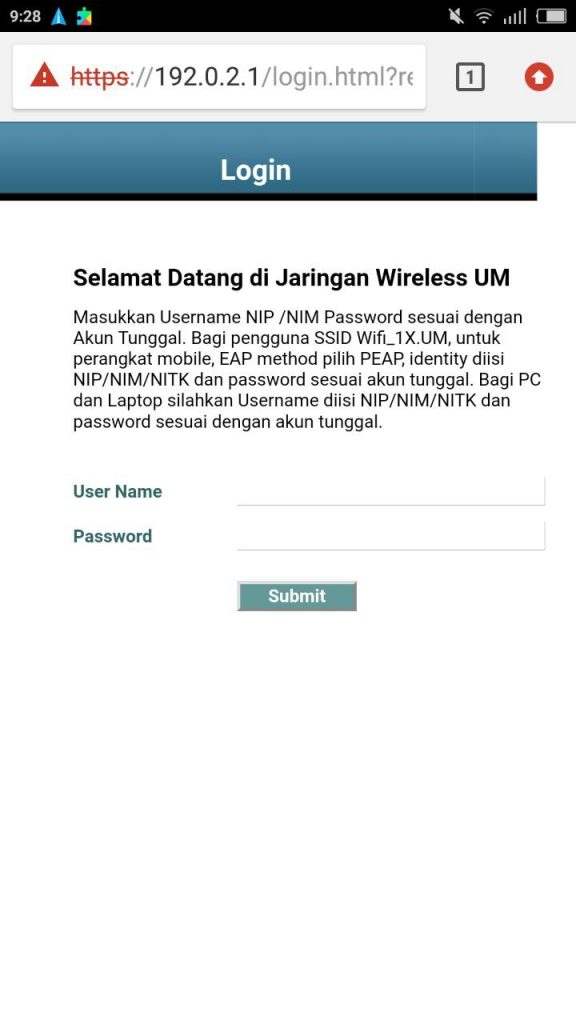
Enter Username and Password. Username and Password referred to here are the username and password according to a single account, usually used to log in when filling in Kinerja.um.ac.id (PPKPNS) or siakad.um.ac.id. Click Submit
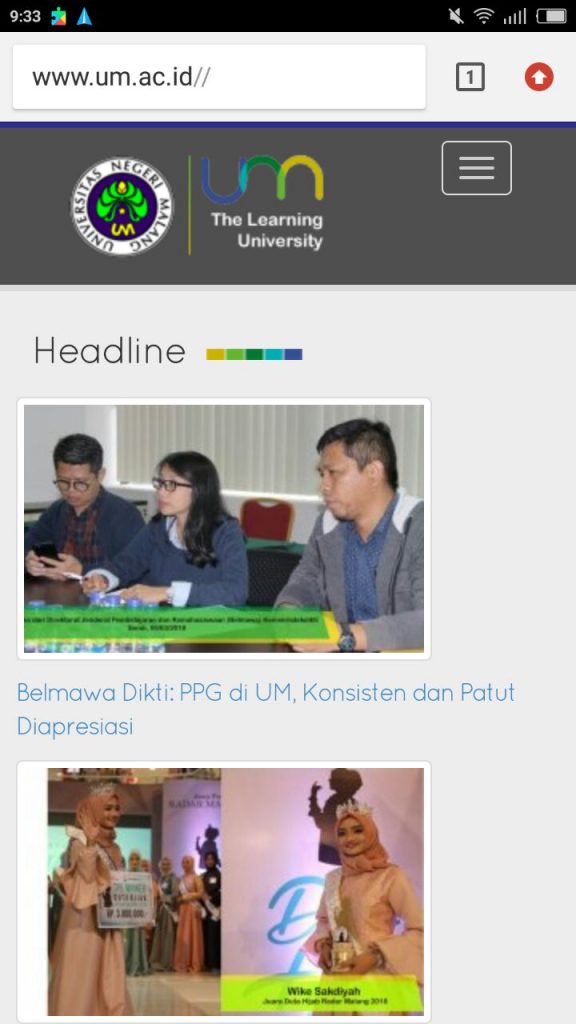
6. After being successful, you will be directed to the um.ac.id page, which means that you can use the Internet in the State University of Malang.
NOTE:
- WIFI_1X.UM and WIFI.UM can be used by all students, lecturers, and educational staff at the State University of Malang.
- It is better to use WIFI_1X.UM than WIFI.UM because wherever there is WIFI_1X.UM your smartphone will automatically connect to the WIFI without resetting it (such as entering a username and password).
- If you can connect to WIFI_1X.UM or WIFI.UM but you are still not connected to the Internet, please enter settings -> wireless -> WIFI_1X.UM or WIFI.UM -> Forget Network. Then please start the initial settings.
- If there is a warning that your username or password is wrong, please check your NIP and password for your single account. If you are absolutely sure that your username and password are correct but there is still a notification that the username or password is wrong, please go to the TIK Helpdesk. Building G1 1st Floor.
- It is forbidden to inform or give a single account (username and password) to other people. Account security is the responsibility of each account owner. The ICT party is not responsible for the misuse of this account.
 English
  Indonesian
Last Comments